
You need: CocoCut 1.8.0 or later, iOS 18 or later, and an iPhone with Camera Control.
Turn on CocoCut for Camera Control
- Open Settings on your iPhone.
- Tap Camera, then tap Camera Control.
- Select CocoCut from the available apps.
- Choose Single Click or Double Click as the launch gesture.
- Choose Single Click for the fastest access.
- Choose Double Click if you often trigger the button by accident.
- Return to the Home Screen and press Camera Control to confirm that CocoCut opens.
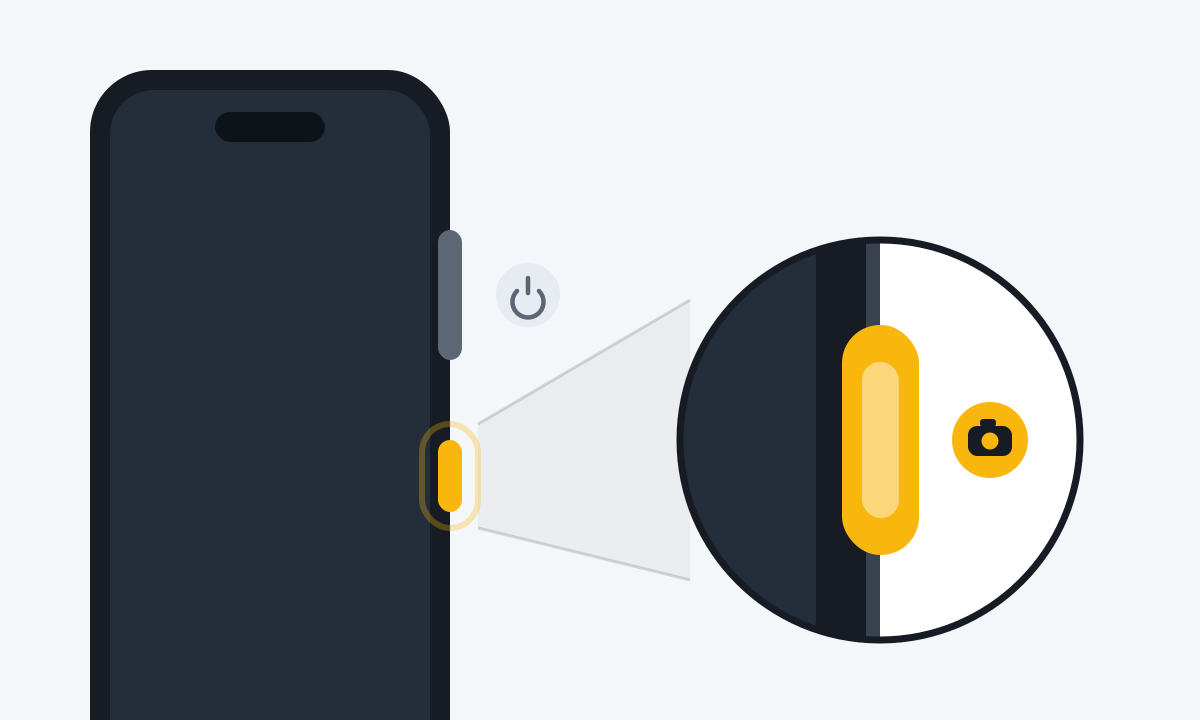
Look for the two physical controls on the right edge: Camera Control is the highlighted slim button below the side button.
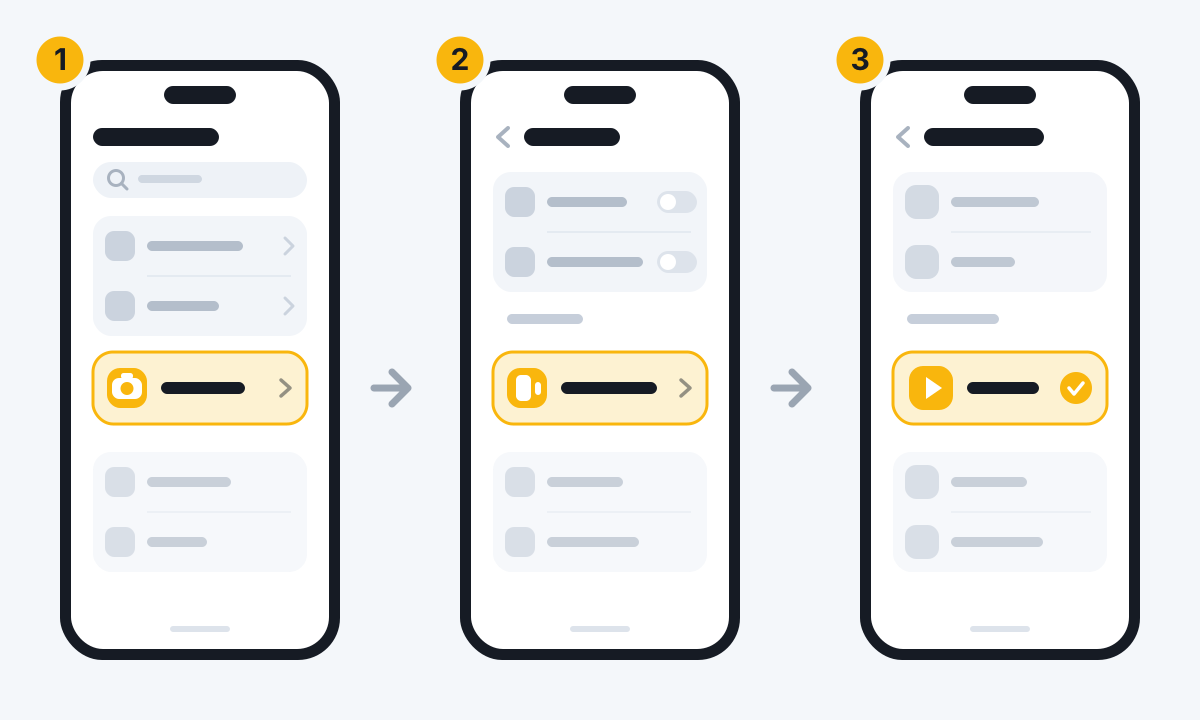
Labels and option order can vary slightly between iOS versions.
If CocoCut is missing from the list, open CocoCut once and grant camera access, then make sure the app is updated to version 1.8.0 or later.
Two ways to use it
iPhone unlocked: open the viewfinder quickly
When your iPhone is unlocked, pressing Camera Control opens the CocoCut viewfinder. Tap CocoCut's on-screen shutter to record a clip.
Camera Control provides a fast entry point. It does not replace captions, music, or export tools in the CocoCut Studio.
Lock Screen: capture a moment immediately
From the Lock Screen, pressing Camera Control opens CocoCut's compact capture view:
- Frame what you want to remember.
- Press Camera Control or the on-screen shutter to start recording.
- Press it again to stop.
- Unlock your iPhone and open CocoCut. The locked-screen clip is added to the current Vlog.
The Lock Screen capture view is designed for quick recording. Editing tools such as captions, music, and export remain available after you return to the main CocoCut app.
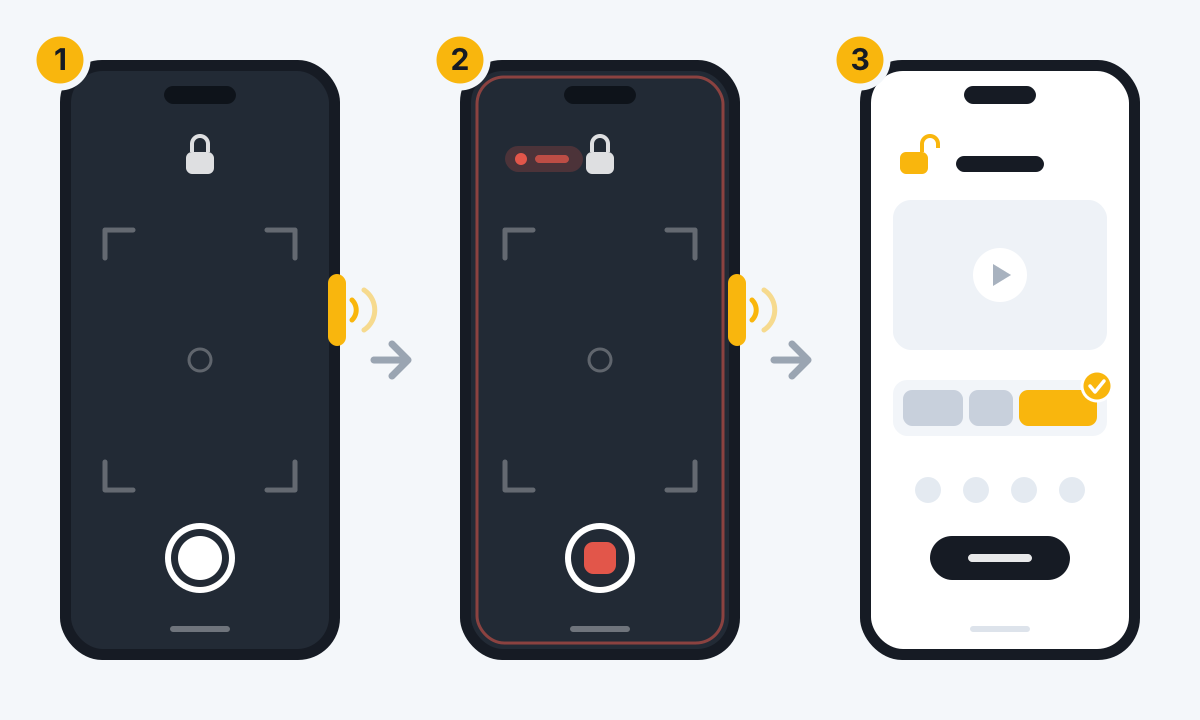
This is not a Shortcuts automation
Camera Control uses an iOS system camera entry point. You do not need to create an automation in the Shortcuts app.
The Action button, Control Center, and Siri can also open CocoCut, but they are separate system entry points with different setup paths.
If Camera Control does not work
- A single press does nothing: Check whether Settings > Camera > Camera Control is set to Double Click, then press twice.
- Apple Camera opens instead: Return to the same page and select CocoCut.
- CocoCut is not listed: Open CocoCut and grant camera access, confirm version 1.8.0 or later, and update iOS if needed.
- The Lock Screen view is black: Go to Settings > Privacy & Security > Camera and allow CocoCut to use the camera.
- The recording has no sound: Go to Settings > Privacy & Security > Microphone and allow CocoCut to use the microphone.
- The clip is not visible after unlocking: Unlock the phone and open CocoCut, then allow the import to finish. If it still does not appear, keep CocoCut in the foreground and reopen the current Vlog.
Adjust press force and double-press speed
If a light press or double press is difficult to recognize, go to:
Settings > Accessibility > Camera Control
You can adjust the light-press force and the speed required for a light double press, or turn off gestures that you do not use.